
Post your video to Instagram or Facebook
Connect your Instagram account or Facebook Page, post or schedule a Reel, and follow its status.
Reviewed
You can post a finished video to Instagram or to a Facebook Page from LongStories. The video goes up as a Reel. Posting needs an active paid plan. Without one, the Social posts tab says An active paid subscription is required to post.
What you need first
- Instagram: an Instagram Business or Creator account that is linked to a Facebook Page. A personal Instagram account cannot be connected. See Set up Instagram for posting from LongStories if you are not sure.
- Facebook: a Facebook Page that you manage. LongStories cannot post to a personal Facebook profile.
Connect your account
-
Open Connected accounts. You can also open My Videos, select the Social posts tab, then Connected accounts.
-
Select Connect Instagram or Connect Facebook.
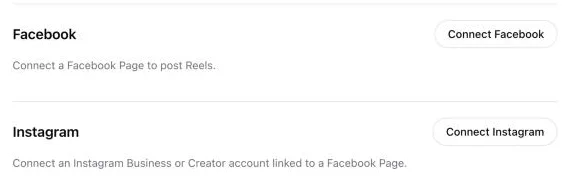
-
Sign in to Facebook with the account that manages your Page. Instagram uses the Facebook sign-in too.
-
Facebook asks which Pages and Instagram accounts LongStories can use. Select the Page, and for Instagram also the Instagram account linked to it. If Facebook says Continue as your name, select Edit settings to check the selection.
-
You come back to Connected accounts. It says Account connected. Your Page or Instagram account shows under its heading.
If you manage more than one Page, select each one you want to post to. Each Page or Instagram account shows as its own account. Disconnect removes one.
If the page says Could not connect this account. Check app setup and account permissions, then try again., see Fix a failed connection.
Post or schedule a video
- In My Videos, select the button with three dots on a finished video, then Post to Instagram or Post to Facebook.
- Under Account, choose where to post.
- Type a Caption. It can have up to 2,200 characters.
- Choose when to post:
- Post now: leave Schedule (optional) empty and select Post now. The upload starts within one minute.
- Later: pick a date and time under Schedule (optional), at least 15 minutes from now, then select Save schedule. The time uses your device's time zone.
- Select View social posts to follow the post.
- Facebook posts are public. Audience shows Public.
- LongStories posts the last exported version. After changes in the editor, export the video again first. See Download and export your video.
- You can keep the page open or close it. The upload goes on without you.
Follow your posts
The Social posts tab in My Videos lists every post and its status. Select Refresh to update it.
- Scheduled or Queued: waiting to upload. Cancel stops it.
- Uploading or Processing: the video is on its way. Instagram and Facebook can take a few minutes to process a Reel.
- Published: the post is live. View post opens it.
- Failed, Stopped or Canceled: nothing was posted. Try again opens the form again.
- Check on the site: LongStories could not confirm the result. Look for the post on Instagram or Facebook first, then select Check status. Do not post again until you know, or the video can appear twice.
TikTok
TikTok posting is not open yet. Until it is, download the video and upload it in the TikTok app. In My Videos, select the button with three dots on the video, then Download Video.