
How to Create AI Animation: From Concept to Final Video

Figuring out how to create AI animation used to feel like a trick question — the honest answer involved art school, animation software with a punishing learning curve, or a studio budget most people don't have.
None of that is true anymore. Today you can go from a one-line idea to a finished, narrated animated video using AI, with no drawing skills and no traditional animation experience.
But there's a real gap between "type a prompt and get a clip" and actually producing something that looks like animation — with consistent characters, a story that holds together, and a polished final cut. This guide walks the full distance: from the initial concept, through tool choice and character setup, to generating and exporting your finished video.
We'll use LongStories.ai's AI animation generator as the main tool throughout, since it's built specifically for long-form, character-consistent animated video. But the workflow and the principles behind it apply no matter which tool you land on.
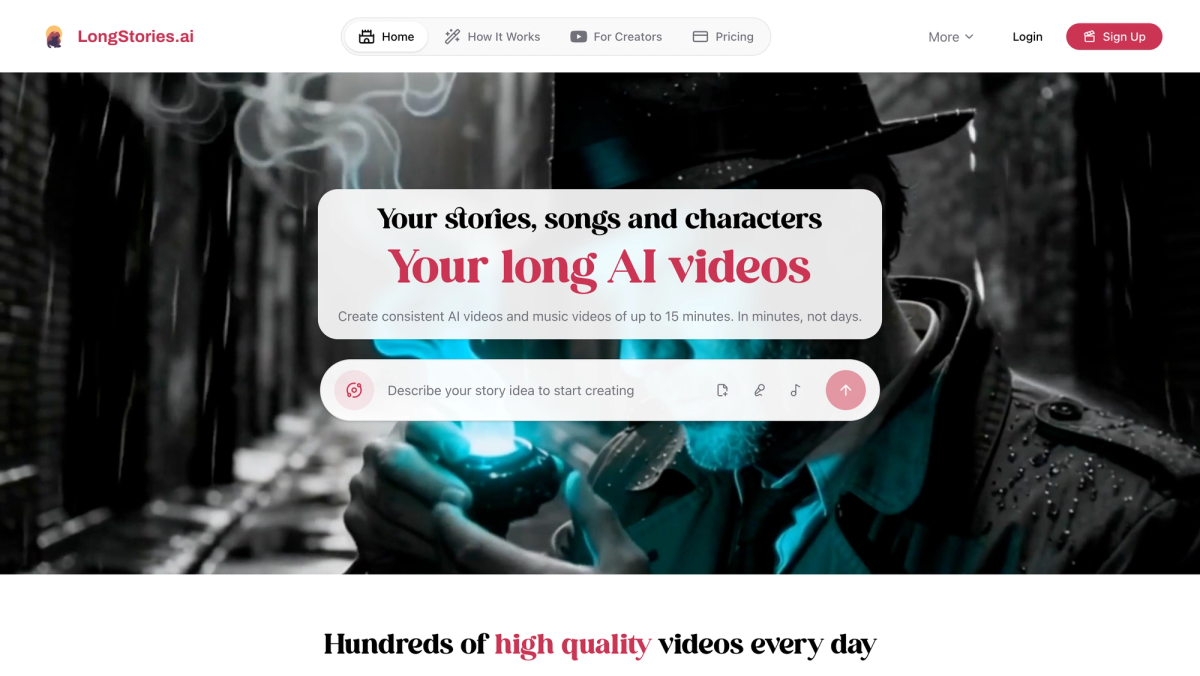
What "Creating AI Animation" Actually Means
When people search for how to create AI animation, they usually mean one of two different things:
An animated image or short effect — turning a prompt or a photo into a stylized, lightly moving clip. This is quick, and tools like Pika or basic image-to-video features handle it in a couple of minutes.
An animated video that tells a story — a sequence of scenes with characters, narration, and a beginning, middle, and end. This is what most people actually picture when they say "animation," and it's what this guide covers.
The difference matters because the second one is a genuine production workflow. It's not just image generation; it involves concept, character design, scene sequencing, animation, audio, and a final edit. Skip the structure and you get the most common complaint in AI animation: a character who looks like a different person in every shot.
Step 1: Nail the Concept Before You Touch a Tool
This is the step almost everyone skips, and it's why so much AI animation feels random. Ten minutes here makes every later step faster and cleaner.
Before you open anything, decide four things:
Your premise. One or two sentences covering who the character is, what happens, and why someone would watch. "A retired lighthouse keeper befriends a lost sea creature during a storm" is a premise. "Something cool happens" is not.
Your audience and tone. Kids content, teen drama, adult comedy, an explainer — your answer shapes every creative choice that follows. A warm watercolor children's story and a dark sci-fi short demand completely different decisions.
Your length. A 30-second social clip, a 3-minute short, and a 10-minute episode each need different levels of setup. If this is your first animation, start short — a one- to two-minute piece is a realistic first target.
Series or one-off. This is the most important question. If there's any chance you'll make more videos with the same characters and world, set that up once at the start (Step 3) so everything stays consistent later.
Then sketch the story in beats — what happens in each scene and roughly how long it runs. A simple three-scene arc (setup → turn → payoff) is enough to start. That sketch becomes your prompt in Step 5.
Step 2: Choose the Right Tool for the Job
Not every tool is built for the same thing, and matching the tool to your goal saves a lot of wasted credits. As a quick guide: full animated stories with consistent characters point to LongStories; single high-end cinematic shots point to Runway; ultra-smooth motion points to Kling; and short, punchy social clips point to Pika or Veo. If you're still weighing options, our roundup of the best AI tool for animation breaks down each one's strengths and pricing.
For a concept-to-final-video workflow — the thing this guide is about — we'll use LongStories, because it handles the whole pipeline (story, characters, animation, narration, export) in one place instead of forcing you to stitch five tools together.
Step 3: Lock In Your Visual Style
Before generating anything, decide how your animation should look. LongStories organizes this through a Universe — a saved visual container that holds your art style, palette, lighting, tone, and narrator voice. Define it once and every video you make inside it inherits the same look automatically, which is what keeps a series feeling cohesive instead of cobbled together.
The styles available cover most of what creators want:
- Pixar / 3D — polished, rounded, cinematic. Best for family stories and adventures.
- Studio Ghibli — soft, painterly, emotional. Best for fantasy, slice-of-life, and coming-of-age.
- Anime / Manga — clean lines, bold designs, high contrast. Best for action and drama.
- Classic cartoon and flat 2D — graphic and expressive. Best for comedy and explainers.
If you're not sure, "Let AI decide" reads your prompt and picks a fitting style. But for anything you plan to build on, choosing deliberately gives you far more control.
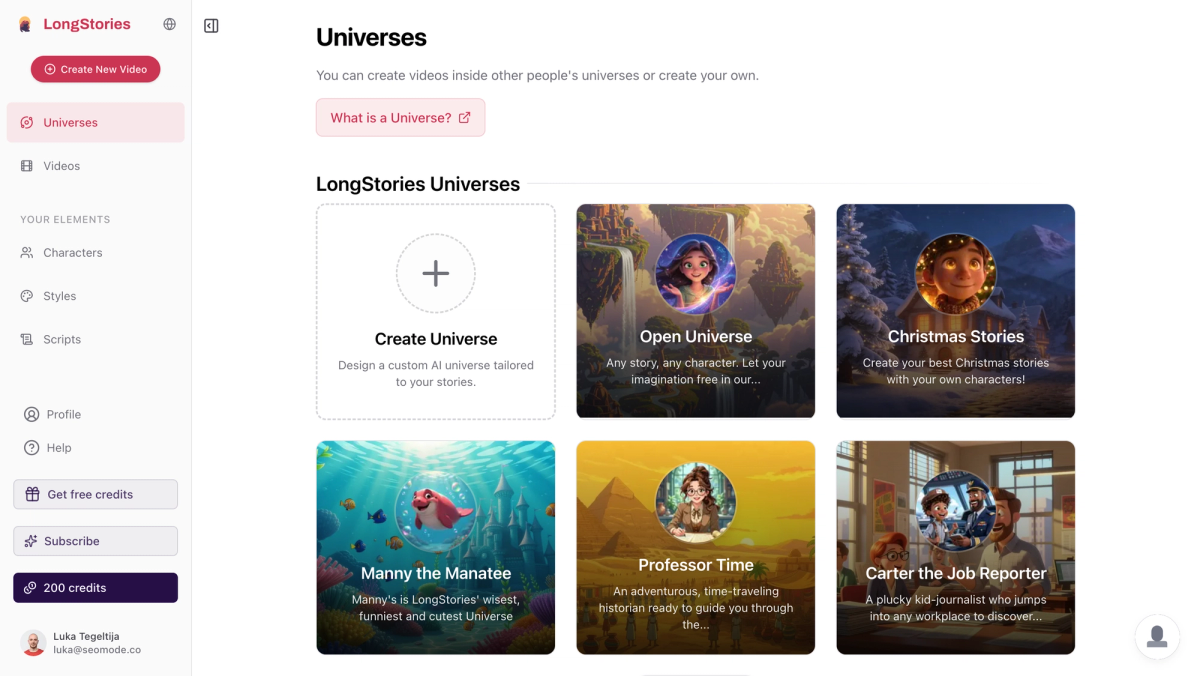
Step 4: Create Consistent Characters
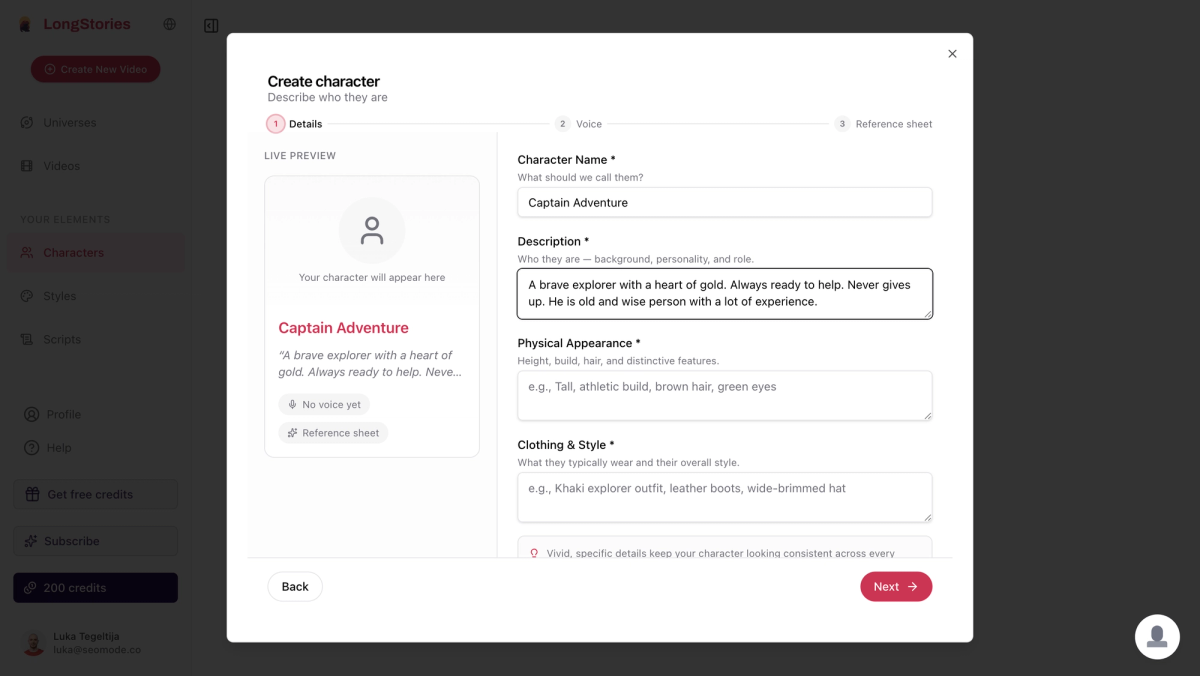
Character consistency is the single hardest problem in AI animation, and it's worth solving before you generate a full video. Instead of re-describing your character in every prompt and hoping the model remembers, you create a character profile once.
In LongStories, open the Characters tab and either upload a clear, front-facing reference image (the most reliable method) or describe the character in text. The platform builds a reference sheet from that input and uses it to keep the character visually anchored across every scene and every future video.
A few things that make character profiles stronger: use a neutral-expression, front-facing image as your primary reference; explicitly describe signature details like a specific jacket, glasses, or hair color; and if you're building a series, create all your main characters up front so you can drop any of them into a prompt by name.
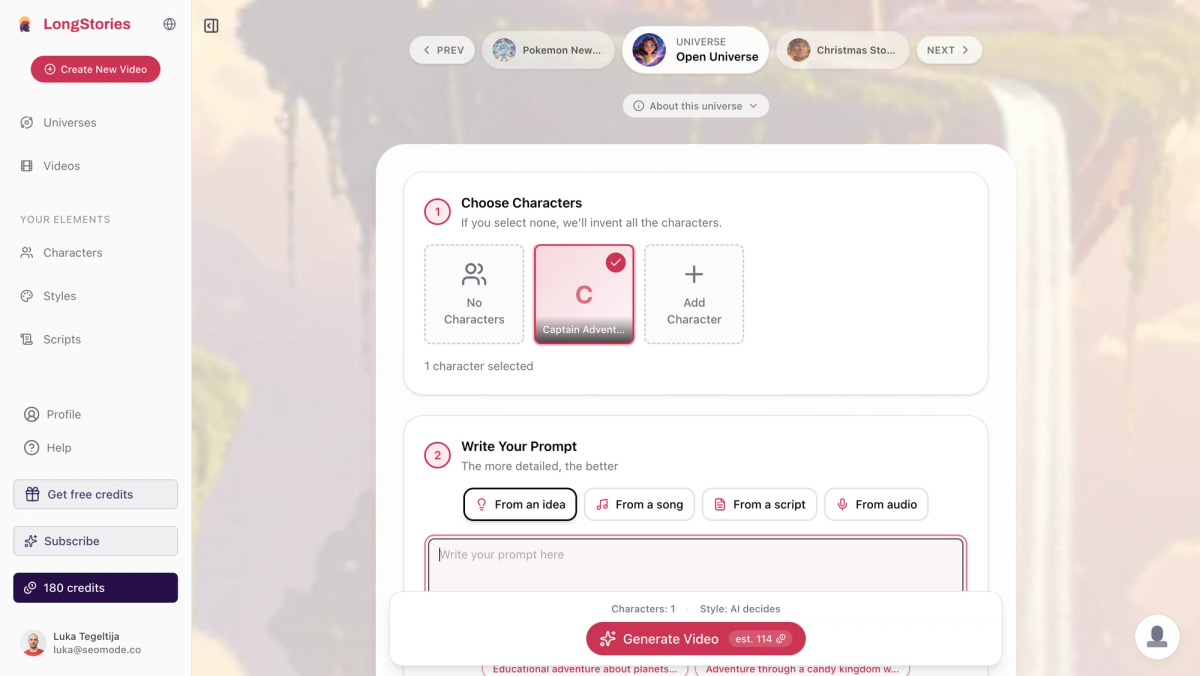
Step 5: Write the Prompt That Drives Your Scenes
With your style and characters set, the prompt only has to handle one thing: the story. You're not describing lighting or art direction — the Universe already owns that.
Here's the difference a good prompt makes:
Weak: "An animation about a robot."
Strong: "Bolt, a small rusted delivery robot, gets separated from his convoy in a neon city at night. One-minute story: he wanders lost through crowded streets, nearly gets crushed at a crossing, then spots his convoy's signal light and races to catch up as the sun rises."
The strong version gives the system a named character (linked to the saved profile), a clear premise, a scene structure, and an emotional arc — all in a short paragraph. A few prompt habits worth keeping: mention characters by name, include a rough duration so the system knows how many scenes to build, and use light camera language ("wide establishing shot," "close-up on his face") when framing matters. Don't over-engineer it — describe the story and let the style and character profiles handle the visuals.
Step 6: Generate — Storyboard, Then Fast, Then Pro
LongStories offers three animation levels, and using them in order saves both time and credits:
- Just Storyboard — static illustrated panels, the cheapest pass. Use it first to check that the pacing, composition, and story read the way you intended. If something's off, tweak the prompt and regenerate in seconds.
- Fast Animation — adds motion at a quicker render time. Good for drafts and for seeing how the story flows before committing.
- Pro Animation — the highest quality, for your finished, published video. It takes longer to render but looks intentional and polished.
The recommended workflow is always the same: generate a storyboard, approve the story, then render the final in Pro. A storyboard costs a fraction of a full render to redo, so catching problems there is far cheaper than fixing them later. Turn on voiceover if you want narration, and pick a narrator voice and language that fit your tone.
For reference on cost: a one-minute video runs roughly 284 credits on Fast Animation and around 534 credits on Pro. The free plan (200 credits, one video up to 30 seconds) is enough to test the whole flow before you commit to a paid plan.
Step 7: Review, Edit, and Export the Final Video
Once your animation generates, you've reached the "final video" stage — but it's rarely done on the first pass, and that's normal.
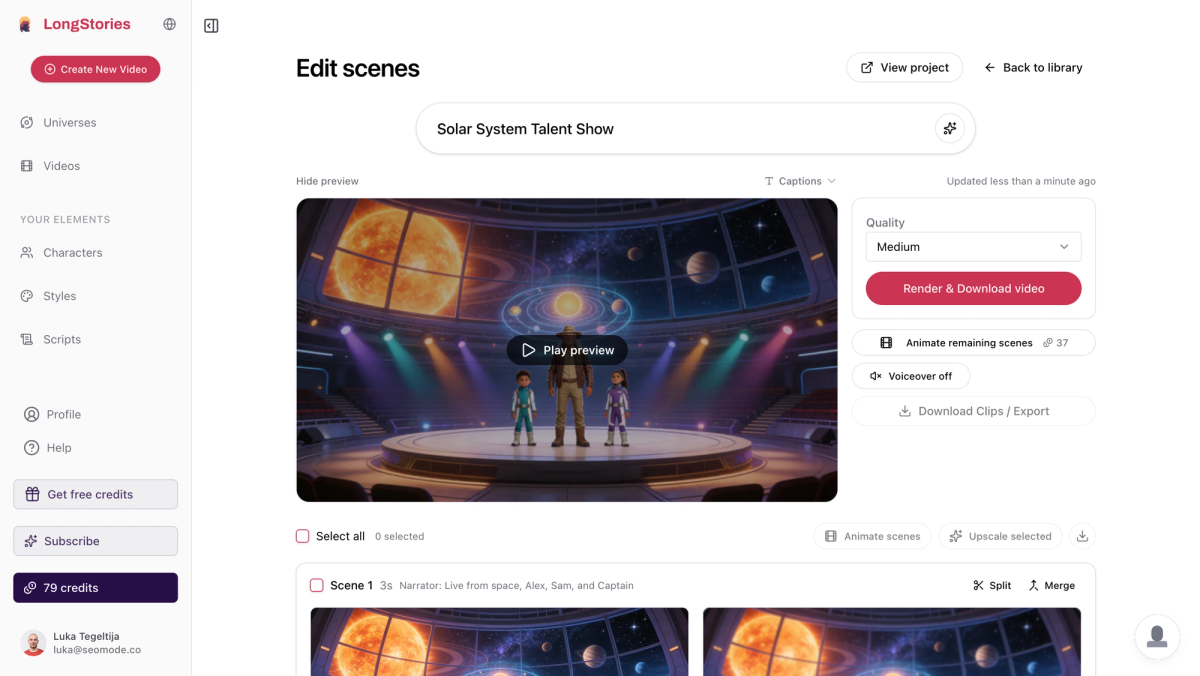
Inside LongStories, review each scene: does it match the prompt, is the pacing right, does the character stay consistent with the reference sheet? You can regenerate individual scenes without rebuilding the whole video, which is the fastest way to fix a single shot where the face drifted or a beat held too long.
When the scenes are right, you have two paths to a finished file. You can finish inside LongStories and export directly. Or you can use bulk download to pull every scene out and assemble them in a dedicated editor like CapCut, DaVinci Resolve, or Adobe Premiere, where you can layer in extra music, sound effects, captions, and transitions before exporting.
Tips for Sharper AI Animation
Plan once, generate many. The upfront concept and character work is front-loaded effort. Once your Universe and cast exist, each new video is mostly just a fresh prompt.
Reference a specific aesthetic. "Stop-motion clay," "Studio Ghibli lighting," or "1990s Saturday-morning cartoon" gives the model far clearer direction than "animated."
Test before you scale. Generate a 15-second clip whenever you set up a new style or character, so you catch problems before investing in a full render.
Match style to story. Warmer, painterly looks suit emotional and family stories; bolder, high-contrast looks suit action and comedy. If you want a pure cartoon aesthetic, our step-by-step AI cartoon guide covers it, and for anime there's our guide to making AI anime.
Frequently Asked Questions
How do I create AI animation if I can't draw?
You don't need to draw at all. Creating AI animation is entirely text-driven — you describe your story and characters, and the AI generates the visuals. Drawing only helps if you want to make custom reference images for your characters, and even that's optional since you can describe them in words or use existing images.
Can I create AI animation for free?
Yes. LongStories.ai has a free plan with 200 credits and one video up to 30 seconds, enough to take a concept all the way to a finished short clip before paying. Most other tools offer limited free tiers too, though they typically cap length or resolution or add a watermark.
How do I keep my character consistent across the whole animation?
Create a character profile before you generate. Upload a clear front-facing reference image (or describe the character in detail), and the tool builds a reference sheet it uses to keep that character looking the same in every scene and every future video — no re-prompting required.
How long does it take to create an AI animation video?
A short clip can go from concept to export in well under an hour. The variable is render time: storyboard passes are near-instant, Fast Animation is quick, and Pro Animation takes longer for higher quality. The planning and prompt work is usually faster than the rendering.
How long can an AI-generated animation be?
It depends on the tool. Many clip generators top out at a few seconds, while LongStories supports videos up to 15 minutes — long enough for a full animated short or a complete episode.
LongStories is constantly evolving as it finds its product-market fit. Features, pricing, and offerings are continuously being refined and updated. The information in this blog post reflects our understanding at the time of writing. Please always check LongStories.ai for the latest information about our products, features, and pricing, or contact us directly for the most current details.